Here are 10 tech hacks that may save you time, money and aggravation when you’re using your digital device.
Tap Yourself On the Back
There’s a secret button on iPhones that helps you to quickly and effortlessly perform a task, open an app or change a setting. The button is called “back tap,” and tapping twice or three times on the back of the phone will launch the camera, mute your device before a movie or turn on the flashlight in a dark parking lot. To set up this useful feature, go to Settings > Accessibility > Touch > Back Tap.
Get Free Books
Did you know you can borrow ebooks and audiobooks from your local library? As long as you have a valid library card, the free Libby app lets you reserve books (even today’s bestsellers) that are either delivered immediately or reserved for you until available.
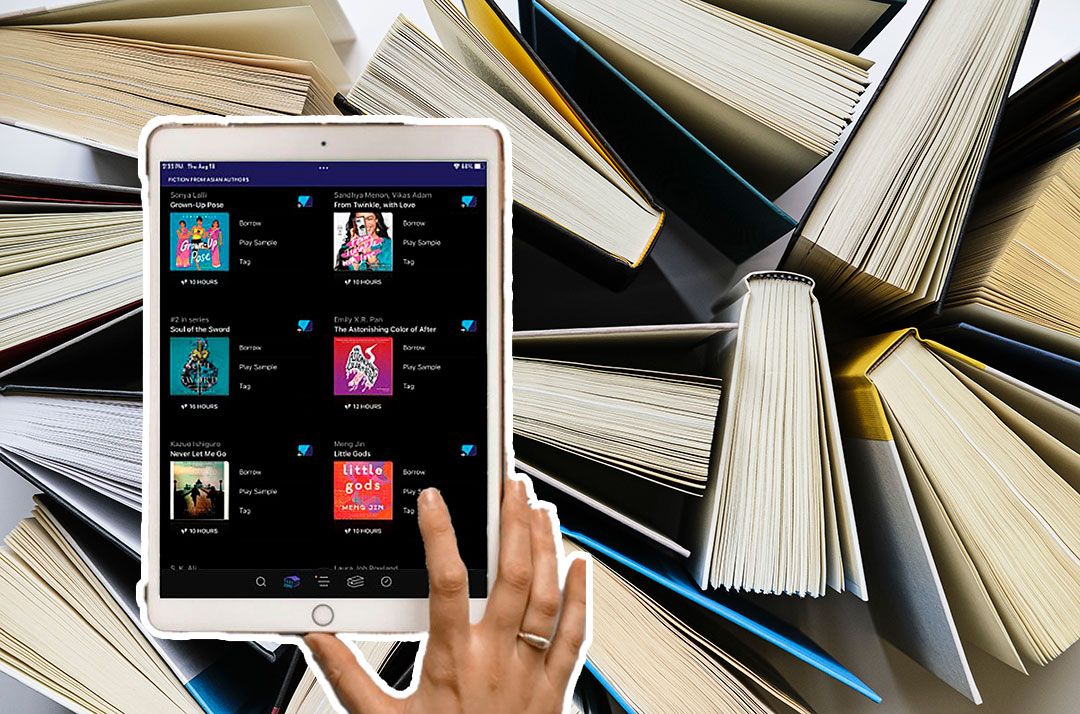
You don’t have to worry about bringing the books back to the library or risk overdue fines. Install Libby on your devices, and all your loans, notes, bookmarks and reading progress will be synchronized.
Turn eBooks Into Audiobooks
On a related note, iPhone or iPad users can turn ebooks into audiobooks using a built-in accessibility tool that will read aloud any text on the screen. To activate this feature dubbed Speak Screen, go to Settings > Accessibility > Read & Speak > Speak Screen. Then, in any app you have open(such as an ebook reading app), swipe down with two fingers from the top of the screen for the content to be read to you. It also works with emails, messages, web articles, recipes and notes. You can also tweak the voice, including gender and language or speaking speed.
Don’t Bother Your Sleeping Partner
Amazon Echo smart speakers are great for setting alarms and listening to music, podcasts, radio and white noise. But if you have to wake up your smart speaker with your voice by saying “Alexa,” you risk waking up your sleeping partner beside you. Based on personal experience, let me kindly suggest this isn’t a great idea. Instead, use whisper mode on your Amazon Echo smart speaker, which allows you to communicate with Alexa without speaking out loud. Pure genius.
If it’s not already on by default, open the Alexa app on your smartphone, then tap More > Settings > Voice Responses > Whisper Mode.
Instant Surveillance Camera
If you have a spare iPhone, iPad or Android, you can turn it into a free wireless surveillance camera, baby monitor or “nanny cam” (with consent).
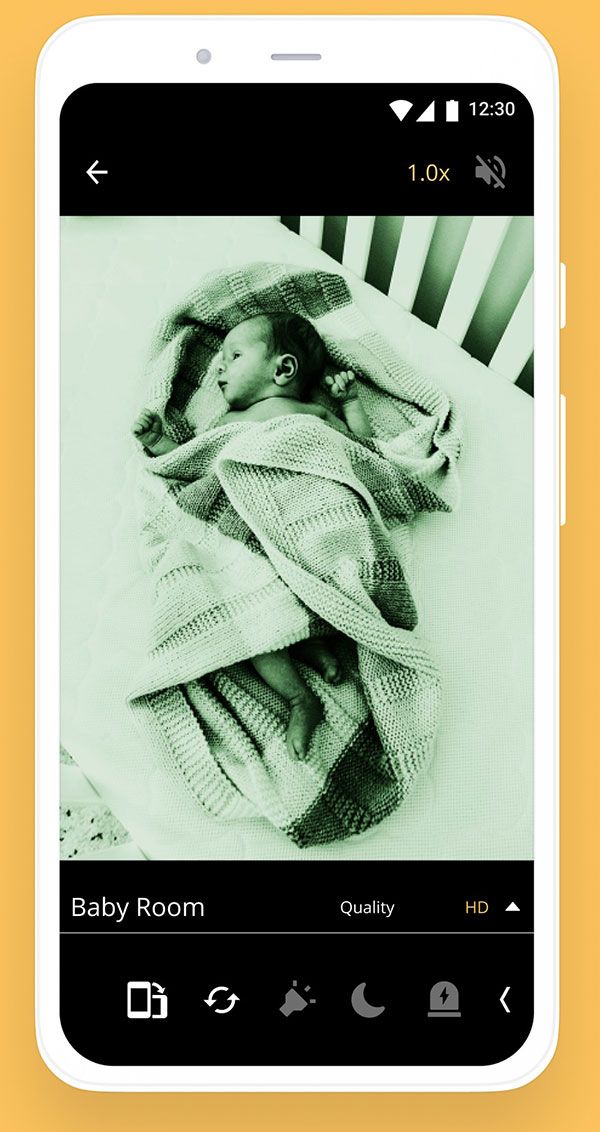
With the free AlfredCamera app, you will sign into the app on your existing phone and your older one. Simply place the old device somewhere in your home, ensure it’s plugged in and point the camera. Now, wherever life takes you, open the same app on your primary phone or tablet to see what’s happening in real-time at home. You can also set up sound or motion alerts.
Free Burner Phone
A secondary phone number on your smartphone is super handy if you don’t want to give out your real number when posting items to a classifieds site or meeting someone via dating apps.
Kitchener-Waterloo, Ont.-based TextNow offers a free app that lets you choose from available 10-digit numbers that are based in your city. This is the number you’ll give out to people for calling and texting. It also works on tablets, laptops and desktops. You can change the ringtone, access voicemail, engage in a three-way calling and more.
One small caveat: if you use your device outside of where you have free Wi-Fi (like at home), it relies on cellular connectivity, which may incur data charges with your mobile provider.
Stop Wi-Fi Thieves
To reduce the odds of a neighbour stealing your home Wi-Fi – or to prevent someone from joining your phone’s personal hotspot when you’re on the go – give your network a name like “Virus Alert.” Everyone will steer clear.
Recover Deleted Photos
If you’ve accidentally deleted photos or videos from your phone, don’t worry – they’re not gone forever.
To retrieve them on iPhone, open the Photos app, tap Albums at the bottom, scroll down and select Recently Deleted, under “Utilities.” Show your face or type in your PIN to confirm it’s really you, then select the photo or video you deleted.
On Android, open the Google Photos app and at the bottom, tap Library Trash. Now touch and hold the photo or video you want to restore, and then tap Restore at the bottom of the screen.
Split the Keyboard
If you like to type while holding your tablet, reconfiguring the keyboard can make it more comfortable.
On iPad, press the virtual keyboard with both thumbs and drag to each side of the tablet. You’ll then see the keyboard split into two, grouping the left and right portions of the keyboard together near the corner of the screen. Now you won’t have to stretch your thumbs to reach letters like G and H.
For Android, launch an app that opens your keyboard (like Messages). Tap the Split keyboard icon (this looks like a keyboard with an empty space in the middle). Now, it should be easier to type while holding. If you don’t like the setup, turn off the split keyboard by tapping the Default keyboard icon.
Save On Hotels
There’s now a service that finds a better price on hotel stays – even after you’ve made a reservation. Use any app or site you like to book your hotel room, then simply forward the email confirmation to save@pruvo.com. If the hotel drops the rate on the room (a very common occurrence, according to Pruvo), you’ll be notified about how much you’ll save and instructed how to cancel the original reservation and re-book at the lower rate. The only catch is you need to have the ability to cancel your room to begin with. Pruvo is both a website and an app. Signing up for an account is required but it’s free.